Design a PCB with Claude, ChatGPT or Gemini using MCP: step by step
This guide follows one real session, call by call: a 4-layer ESP32-S3 board with USB-C and a LiPo charger, asked for in one sentence. Every response below is what PCBEditor’s MCP server returned on 20 October 2026, trimmed for length, including the decision that went wrong and the checks that did and did not catch it.
You talk to your AI tool in plain language; it decides which tool to call. The tool names below are there so you can follow what it does, not because you have to type them. IDs are shortened, and links are shown as the hosted service writes them.
1. Connect your AI tool to the server
Create a free PCBEditor account. Then add the server URL to your client. In Claude Code it is one command:
claude mcp add --transport http pcbeditor https://api.robodib.com/mcpRun /mcp inside Claude Code, choose pcbeditor and approve the PCBEditor consent page that opens in your browser. Other clients take the same URL:
- Set up ClaudeClaude Code, Claude Desktop, claude.ai
- Set up ChatGPT and CodexCodex CLI, ChatGPT, OpenAPI
- Set up GeminiGemini CLI, Gemini API, Google ADK
- Set up Cursor and VS CodeCursor, VS Code + GitHub Copilot, Windsurf
Clients without MCP sign-in send a personal access token from pcbeditor.com/profile/ai-tools as an Authorization: Bearer header. To check the connection, ask your AI tool which PCBEditor tools it has: it should list 16, from design_board to open_in_editor.
2. Look up the parts that matter (optional)
If the board depends on a specific chip, ask about it first. “What is the pinout of the MCP73831?” makes the AI tool call get_part, which answers from PCBEditor’s verified library:
MCP73831: SparkFun-Semiconductor-Standard:SOT23-5.

{
  "found": true,
  "mpn": "MCP73831",
  "package": "SparkFun-Semiconductor-Standard:SOT23-5",
  "type": "ic",
  "description": "Single cell, Li-Ion/Li-Po charge management controller, 4.50V, Tri-State Status Output, in SOT23-5 package",
  "pinout": { "1": "STAT", "2": "GND", "3": "V_{BAT}", "4": "VIN", "5": "PROG" }
}
search_parts searches the same library by description. Ask for a connector and it also lists matching footprints, because a connector is chosen by its land pattern as much as by its symbol:
5 parts. Matching connector footprints are in footprints.

{
  "results": [
    { "part": "USB_C_Receptacle", "type": "usb-connector",
      "description": "USB Full-Featured Type-C Receptacle connector" },
    { "part": "USB_C_Receptacle_USB2.0_16P", "type": "usb-connector",
      "description": "USB 2.0-only 16P Type-C Receptacle connector" },
    …
  ],
  "footprints": [
    { "name": "USB_C_Receptacle_HCTL_HC-TYPE-C-16P-01A", "library": "Connector_USB", "pad_count": 22 },
    …
  ]
}
When get_part finds nothing, the answer says so and adds that design_board can still use the part: PCBEditor researches its datasheet during the design, or asks you.
3. Describe the board
Type what you want. This session used the shortest prompt on the hub page:
Design a 4-layer ESP32-S3 board with USB-C and a LiPo charger.The AI tool turns it into one call. The prompt can be up to 4,000 characters:
design_board {
  "prompt": "Design a 4-layer ESP32-S3 board with USB-C and a LiPo charger.",
  "layers": 4
}
The answer comes back at once with a job, because a design takes minutes rather than seconds:
Designing the board. Poll get_job with job_id until status is done.

{
  "job_id": "job_ijCM…",
  "design_id": "d2029c93-…",
  "status": "running",
  "next": "Call get_job with this job_id (it waits up to 45 s per call).",
  "editor_url": "https://pcbeditor.com/?session=d2029c93-…"
}
The AI tool then calls get_job, which waits up to 45 seconds for the job to move before it answers, and shows the latest progress lines:
Still working (48 s). Call get_job again.

"progress": [
  "Footprint evidence: ESP32-S3-WROOM-1-N16R8 bound to RF_Module:ESP32-S3-WROOM-1 (41 planned pads present …)",
  "Footprint evidence: USB4105-GF-A bound to Connector_USB:USB_C_Receptacle_GCT_USB4105-xx-A_16P_TopMnt_Horizontal …",
  "Electrical evidence: verified 0 of 1 missing pin map(s); unresolved: TPS62743YFPT.",
  …
]
What to put in the description
- What the board does, and the parts you have already chosen, by part number.
- Connectors and where they go: “USB-C on the short edge”, “screw terminals along one side”.
- The power source and its range: “one LiPo cell, 3.0 to 4.2 V”, “12 V from a barrel jack”.
- Size or enclosure limits, and the layer count (2, 4, 6, 8, 10 or 12; 2 if you say nothing).
The short prompt above left the regulator and the battery range open, and step 4 shows what that cost. Claude, given the same sentence in a separate session, wrote its own detailed specification before calling design_board; either way, the more of your intent is in the description, the fewer decisions come back to you. Ask for quality_gate if you want the slower extra review pass.
4. Answer the designer’s questions
When a decision is yours, the job stops with status needs_input. In this session the AI planner had picked a TI TPS62743 buck converter for the 3.3 V rail, and PCBEditor could not find a verified pin map for it in its libraries, its catalogue or the datasheet. It will not wire a chip from a guess, so it asked:
The designer needs an answer: ask the user, then call answer_question.

"status": "needs_input",
"elapsed_seconds": 61,
"question": {
  "text": "TPS62743YFPT has no pin map in our libraries, the verified catalogue, its datasheet text or its datasheet pages. What should I do?",
  "options": [
    { "label": "Use MP2451DT-LF-Z instead of TPS62743YFPT",
      "description": "Verified part of the same kind with a known pin map (6 pins); not a variant, check its datasheet: LED driver buck converter; rated input 4.5-28V …" },
    { "label": "Use XL1509-3.3 instead of TPS62743YFPT",
      "description": "… Buck DC/DC Converter, 2A, 3.3V Output Voltage, 4.5-40V Input Voltage …" },
    { "label": "Open Component Studio for TPS62743YFPT", … },
    { "label": "Research the datasheet of TPS62743YFPT again", … },
    { "label": "Continue without TPS62743YFPT",
      "description": "Build the board now; the part stays on it, unwired and named." }
  ],
  "how_to_answer": "Call answer_question with one option's label, or the user's own words."
}
Read the options before you answer. Both substitutes are rated for 4.5 V input and up, and a single LiPo cell gives 3.0 to 4.2 V, so neither can run this board from its battery. The first one is also an LED driver. The right answers here were “Research the datasheet of TPS62743YFPT again”, or one in your own words, such as “Use an AP2112K-3.3 LDO fed from the battery instead”.
The scripted session took the first option, to show what happens when nobody reads: the job finished 14 seconds later, routed and with 0 DRC errors, around a regulator that cannot start from a single cell. Tell your AI tool to bring every question to you, and give it the answer in plain words; it sends it with answer_question and the same job carries on.
5. Read what came back
A finished job carries a one-line headline, the job’s last progress notes and the board:
Done. 22 parts, 276 traces, 51 vias; DRC errors: 0. Open: https://pcbeditor.com/?session=d2029c93-…

"status": "done",
"elapsed_seconds": 74,
"progress": [
  …
  "DRC clean — no violations remain.",
  "Board delivered with Quality Gate Off. Still to finish: 0 unrouted net(s) (0 open connection(s)), 0 DRC error(s); U3 (MP2451DT-LF-Z) FB is tied to 3V3: its feedback reference is not known here, so the divider that sets 3.3 V cannot be computed; …"
],
"result": {
  "board": { "name": "ESP32-S3 Board", "layers": 4, "width_mm": 57.37, "height_mm": 47.71,
             "components_count": 22, "nets_count": 24, "traces_count": 276, "vias_count": 51, … },
  "drc": { "error_count": 0, "warning_count": 2, … }
}
The headline says 0 DRC errors. The last progress note says something more important: U3’s feedback pin is tied straight to 3V3, because PCBEditor does not know the MP2451’s reference voltage and so could not size the divider that sets its output. Read the notes, not just the headline. get_board returns the same board in detail whenever you ask:
22 parts, 24 nets, 276 traces on a 4-layer board.

"components": [
  { "ref": "U1", "value": "ESP32-S3-WROOM-1", "mpn": "ESP32-S3-WROOM-1-N16R8",
    "footprint": "RF_Module:ESP32-S3-WROOM-1", "x_mm": 28.5, "y_mm": 38.5, "rotation": 180.0, "side": "top" },
  { "ref": "U2", "value": "LiPo charger 500mA", "mpn": "MCP73831T-2ACI/OT",
    "footprint": "Package_TO_SOT_SMD:SOT-23-5", … },
  { "ref": "U3", "value": "3.3V 300mA", "mpn": "MP2451DT-LF-Z", … },
  …
],
"net_names": ["3V3", "CC1", "CC2", "EN", "GND", "PROG_U2", "STAT_U2", "SW_U3", "USB_DM", "USB_DP", "VBAT", "VBUS", …]
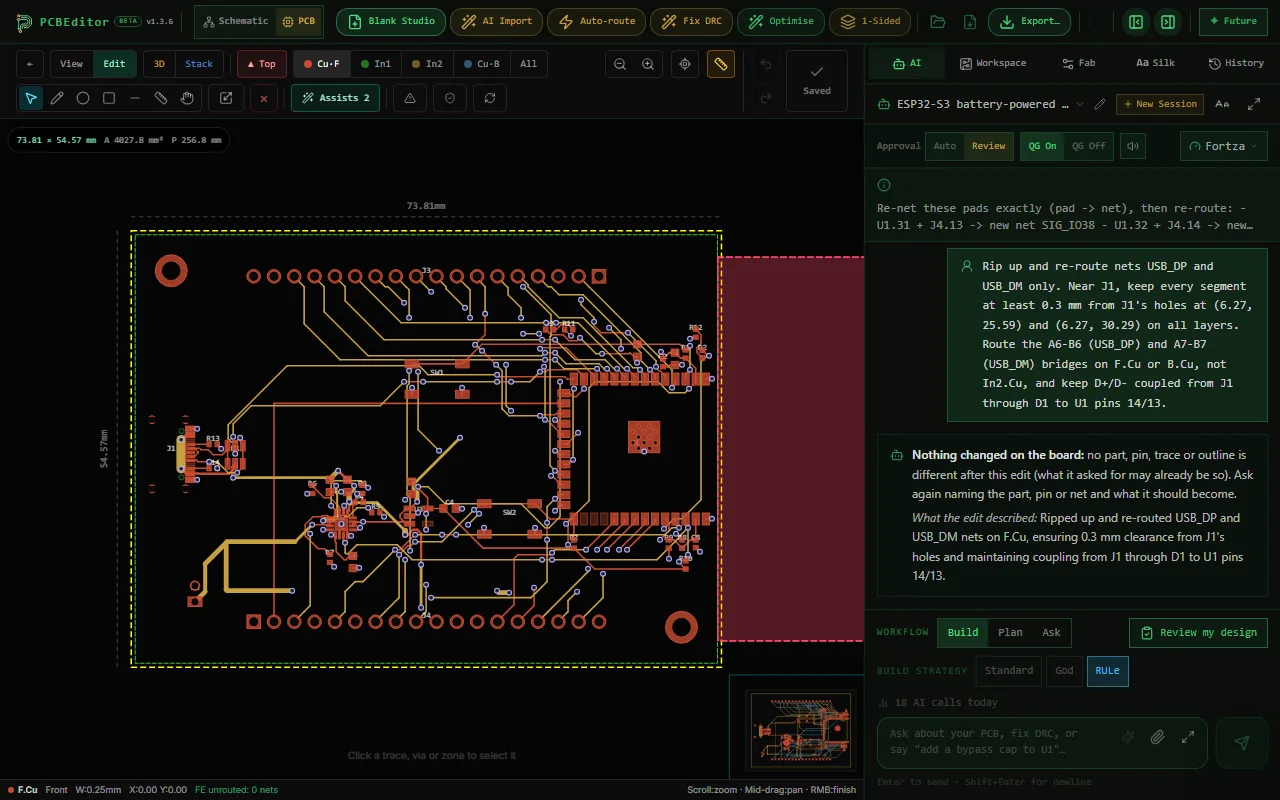
Ask for detail: full and every net comes with the pads it connects, for checking a pin map against a datasheet. This is where an AI tool earns its place. In the Claude Code session the same day (a different board, with a BQ24074 charger), Claude read the full netlist and found three mistakes the design-rule check had passed: the module’s 3V3 pin fed through a 1 kΩ resistor, the charger’s temperature-sense pin pulled up to 3V3, and its input-current-limit pin left unconnected. It fixed them with edit_board and checked again.
6. Check the board
Design-rule check: run_drc
run_drc checks clearances, shorts, unrouted nets, drill and edge rules on the saved board and returns each issue with its location in millimetres:
No DRC errors (2 warnings).

{
  "error_count": 0, "warning_count": 2, "waived_count": 4,
  "issues": [
    { "severity": "WARNING", "rule": "plane_stitch",
      "message": "Plane 'In1.Cu' net 'GND': 1 SMD pad(s) lack a local plane via", "x_mm": 30.0, "y_mm": 36.04 },
    { "severity": "WARNING", "rule": "differential_pair",
      "message": "Sadie: pair spacing 529 um where the gap is 200 um (3 segments drift from the gap) … net 'USB_DP' / 'USB_DM' on F.Cu", … },
    { "severity": "ERROR", "rule": "hole_clearance",
      "message": "Sadie: hole to pad J1.A12 of another net (0.180mm < 0.250mm) on F.Cu", …, "waived": true },
    …
  ]
}
Two warnings worth acting on: one ground pad without a via to the inner ground plane, and the USB pair drifting apart from its 0.2 mm gap. The four waived errors are holes inside the USB-C connector’s own footprint, close to its pads by design.
Design review: review_board
review_board runs as a job and returns its answer in result.answer. The first part comes from the design-rule and electrical checks; a longer, AI-written review follows it:
**Design review: nothing that must be fixed, 2 things to review.**

_From PCBEditor's design-rule and electrical checks, not from AI._

**Worth a look**
- **Ground areas not stitched together**. … **What to do:** Add stitching vias between the ground areas.
- **Paired signal not routed as a pair**. Signals such as USB D+ and D- need matched, side-by-side
  traces to work reliably. **What to do:** Route the pair together, with equal length and spacing.

---
# ESP32-S3 Board Detailed Review
…
Neither part mentioned the regulator that cannot run from the battery. That is the limit of every automated check: it finds what it measures. You can point it at a worry instead, for example “Can U3 run from a single LiPo cell?”, which review_board takes as its question.
7. Edit it in plain language
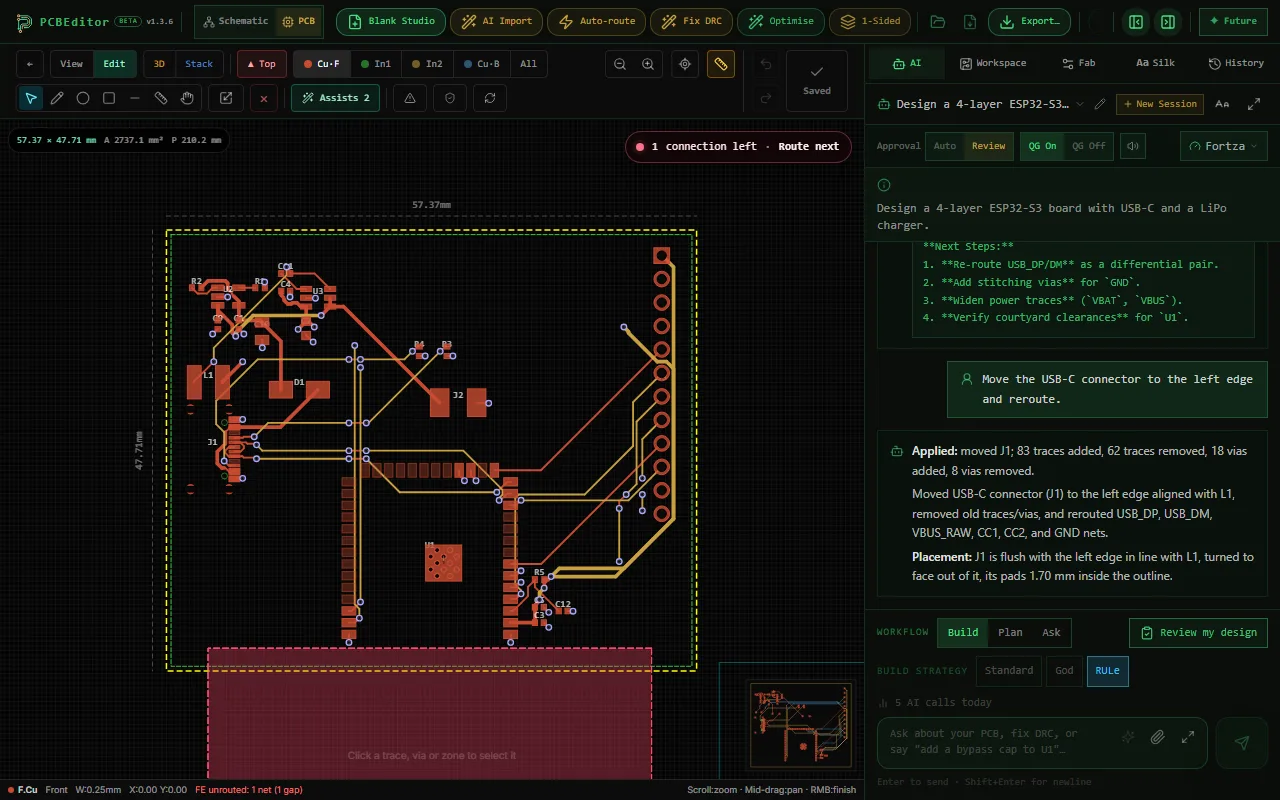
Ask for the change the way you would ask a colleague:
edit_board {
  "design_id": "d2029c93-…",
  "instruction": "Move the USB-C connector to the left edge and reroute."
}
The edit ran as a job, rerouted the nets it touched and reported exactly what changed, 32 seconds later:
Done. 22 parts, 297 traces, 61 vias; DRC errors: 0. …

"answer": "**Applied:** moved J1; 83 traces added, 62 traces removed, 18 vias added, 8 vias removed.
Moved USB-C connector (J1) to the left edge aligned with L1, removed old traces/vias, and rerouted
USB_DP, USB_DM, VBUS_RAW, CC1, CC2, and GND nets.
**Placement:** J1 is flush with the left edge in line with L1, turned to face out of it, its pads
1.70 mm inside the outline."
Then check again. The new position put J1’s courtyard on top of the inductor’s:
No DRC errors (3 warnings).

{ "severity": "WARNING", "rule": "courtyards_overlap",
  "message": "Courtyards of J1 and L1 overlap by 1.5655 mm² on the top side", "x_mm": 4.54, "y_mm": 18.57 }
A warning, not an error, but one to fix with a second instruction, such as “Move L1 so it clears J1”. Other edits that work the same way: add or replace parts, rotate components, change the outline, add mounting holes, swap a footprint, re-route nets. route_board, on its own, routes only the connections that are still open and keeps the copper that is there.
8. Bring in a KiCad board
import_kicad takes the text of a .kicad_pcb file, up to 8 MB, so the AI tool reads the file from your disk and sends it. A prompt is enough:
Import hardware/rp2040-board.kicad_pcb into PCBEditor and run the design-rule check.Imported 24 parts and 256 traces as design 264cf255-….
{ "name": "rp2040-board", "layers": 6, "width_mm": 80.06, "height_mm": 57.64,
"components_count": 24, "nets_count": 20, "traces_count": 256, "vias_count": 87, … }2 DRC errors, …
{ "severity": "ERROR", "rule": "clearance",
"message": "Sadie: trace to trace (0.120mm < 0.127mm) net '3V3' / 'FLASH_HOLD' on F.Cu" },
{ "severity": "ERROR", "rule": "hole_to_hole",
"message": "Sadie: hole to hole (0.482mm < 0.500mm) net '3V3' / '3V3' on F.Cu" }The imported board keeps its copper, so the check measures your routing: here, one trace pair 7 µm too close and two holes 18 µm too close. From here the board is like any other design: edit_board to fix it, route_board for open connections, export_board for fab files or a KiCad project to take back to KiCad.
9. Export the fab files
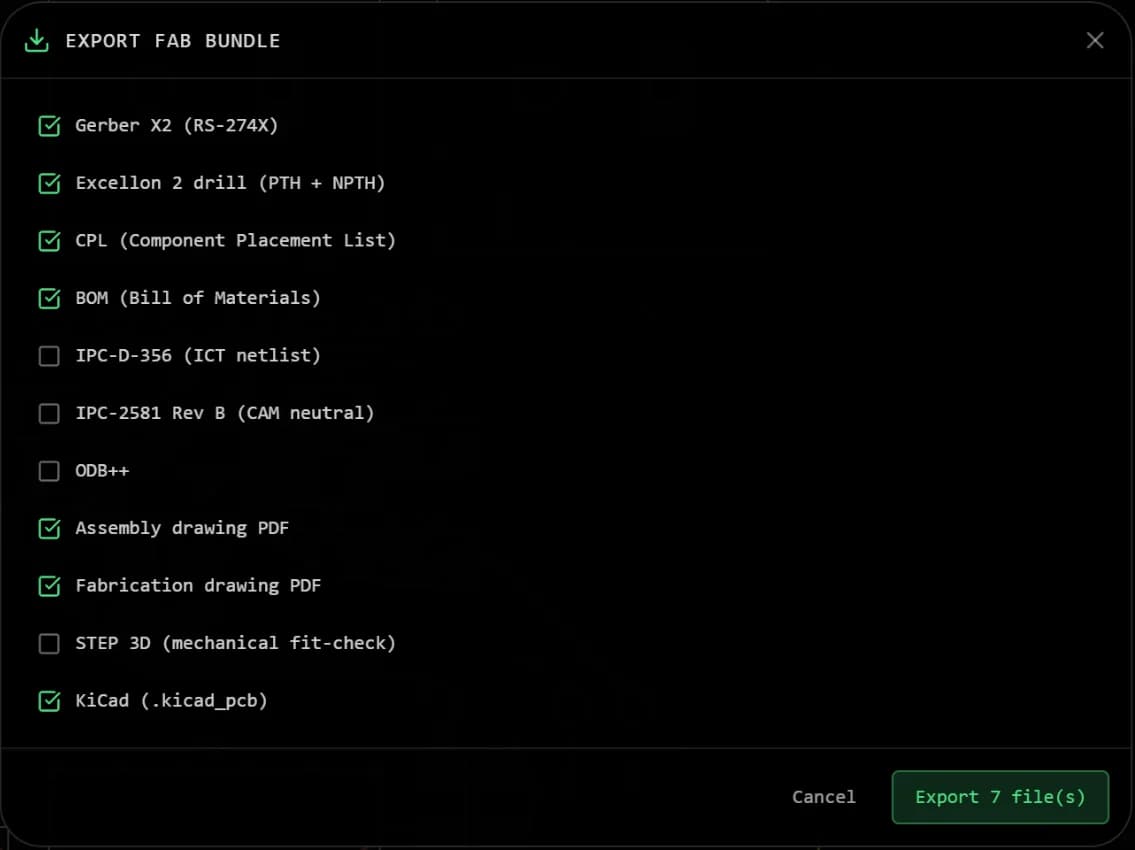
“Export Gerbers, drill, BOM and CPL” is the default set, so export_board needs nothing but the design:
Manufacturing files ready: https://api.robodib.com/agent-api/v1/downloads/… (valid 15 minutes).

{
  "formats": ["GERBER_X2", "EXCELLON", "BOM", "CPL"],
  "file_name": "pcbeditor-d2029c93.zip",
  "size_bytes": 127026,
  "download_url": "https://api.robodib.com/agent-api/v1/downloads/…",
  "expires_in_seconds": 900
}
Ask for other formats by name: IPC_356, IPC_2581, ODB_PLUS, ASSEMBLY_PDF, FABRICATION_PDF, STEP_3D or KICAD. In this session, KiCad and STEP together came to a 753 KB zip. The link expires after 15 minutes; ask again for a fresh one.
A board with design-rule errors is refused, with the reason. This is the imported RP2040 board from step 8:
Export refused: the board is not ready for manufacture.

{
  "refused": true,
  "detail": {
    "error": "DRC blocked this export. 2 error(s) across 2 rule(s); clearance accounts for the most.",
    "reason": "drc_errors",
    "kicadExportAllowed": true,
    …
  },
  "next_step": "Fix the board (edit_board or route_board) or, only if the user accepts the listed errors, call export_board again with accept_drc_errors and drc_errors_key from this refusal."
}
Fix the errors, or, if you have read them and accept them, tell your AI tool so; it repeats the export with the count and key from the refusal. It should never do that on its own.
10. Check the files and order
- Ask for the editor link (open_in_editor) and look at the board yourself: placement, the 3D view, the schematic.
- Check every chip’s pins against its datasheet, starting with power and anything the notes flagged.
- Open the Gerber zip in a viewer, such as the free Gerber viewer, and follow the Gerber checklist.
- Upload the zip to the PCB manufacturer you use. For assembly, send the BOM and the pick-and-place (CPL) file with it.
Treat a generated board as a draft from a fast colleague: often right, sometimes confidently wrong, and always worth a review before you pay for copper.
Limits to know
- 60 tool calls a minute per user. get_job waits up to 45 seconds per call, so following a job takes only a few.
- Jobs are kept for 24 hours; download links last 15 minutes.
- Design prompts up to 4,000 characters; KiCad files up to 8 MB; 2 to 12 copper layers.
- Over MCP, KiCad .kicad_pcb is the only import format; there is no Altium, Eagle or OrCAD import.
- Every call runs as you, on your own designs only, and shows under Recent activity on the AI tools tab of your profile, where you can also revoke access.
Common questions
- Can Claude design a PCB?
- With PCBEditor's MCP server connected, Claude can ask for a complete board with design_board, follow the job, answer the designer's questions with you, check the result with run_drc and review_board, change it with edit_board and export fab files with export_board. PCBEditor's engines do the wiring, placement, routing and checks; Claude runs the conversation.
- Does this work with ChatGPT and Gemini too?
- Yes. The server is a standard remote MCP server, so ChatGPT (as a custom MCP server with OAuth sign-in), the Codex CLI, Gemini CLI, Cursor, VS Code with GitHub Copilot and Windsurf use the same 16 tools. Agents that do not speak MCP can call them through the OpenAPI spec.
- How long does a design take?
- The tool description says 1 to 6 minutes for a typical board. In the session on this page the 4-layer ESP32-S3 board finished 74 seconds after the request, including the pause for a question. get_job waits up to 45 seconds per call, so the AI tool checks in a handful of times.
- Can the AI answer the designer's questions on its own?
- It can, and it should not for decisions that matter. On this page the first substitute offered for a missing part was a buck converter rated for 4.5 V and up, which cannot run from a single LiPo cell. Ask your AI tool to bring every question to you.
- Is a board with 0 DRC errors ready to order?
- No. The design-rule check measures copper, holes and clearances. It does not know whether a regulator can run from your battery or whether the reset button is on the reset pin. Read the job's notes, run review_board, open the board in the editor and check the parts against their datasheets before you order.
- Can I import an Altium or Eagle board?
- Not directly. import_kicad takes KiCad .kicad_pcb files only. Open the board in KiCad first, save it as a KiCad board, then import that.
- What are the limits?
- 60 tool calls a minute per user; design prompts up to 4,000 characters; KiCad imports up to 8 MB; jobs are kept for 24 hours; export links last 15 minutes. Exports are refused while the board has copper shorts or DRC errors you have not accepted.
Try the same session on your own board: create a free account, connect your AI tool, and describe what you need.
Which server should you use?
If your designs live in KiCad or Altium and must stay on your machine, a different MCP server may suit you better. MCP servers for PCB design compared sets out what each one does, with sources.