Free online circuit diagram maker: draw a schematic, check it, turn it into a PCB
PCBEditor’s schematic editor runs in the browser, with nothing to install. Draw a circuit diagram by hand, or describe the circuit and let the AI draw it. The editor checks the wiring as you go, exports the sheet to KiCad, and turns it into a routed printed circuit board.
Last reviewed
Short answer
To make a circuit diagram online, open the editor. To draw it yourself, switch to Schematic, click parts from the Components panel and wire pin to pin with the wire tool. To have it drawn, type a description of the circuit into the AI tab; the AI draws the schematic and lays out the board, and Schematic shows the sheet. The Check tab lists open pins, missing power or ground, and common mistakes such as a relay with no flyback diode. When the sheet is right, export it as a KiCad schematic, or press Generate PCB from schematic to lay out and route the board. Drawing is free without an account; the AI and saving need a free one.
Two ways to make the diagram
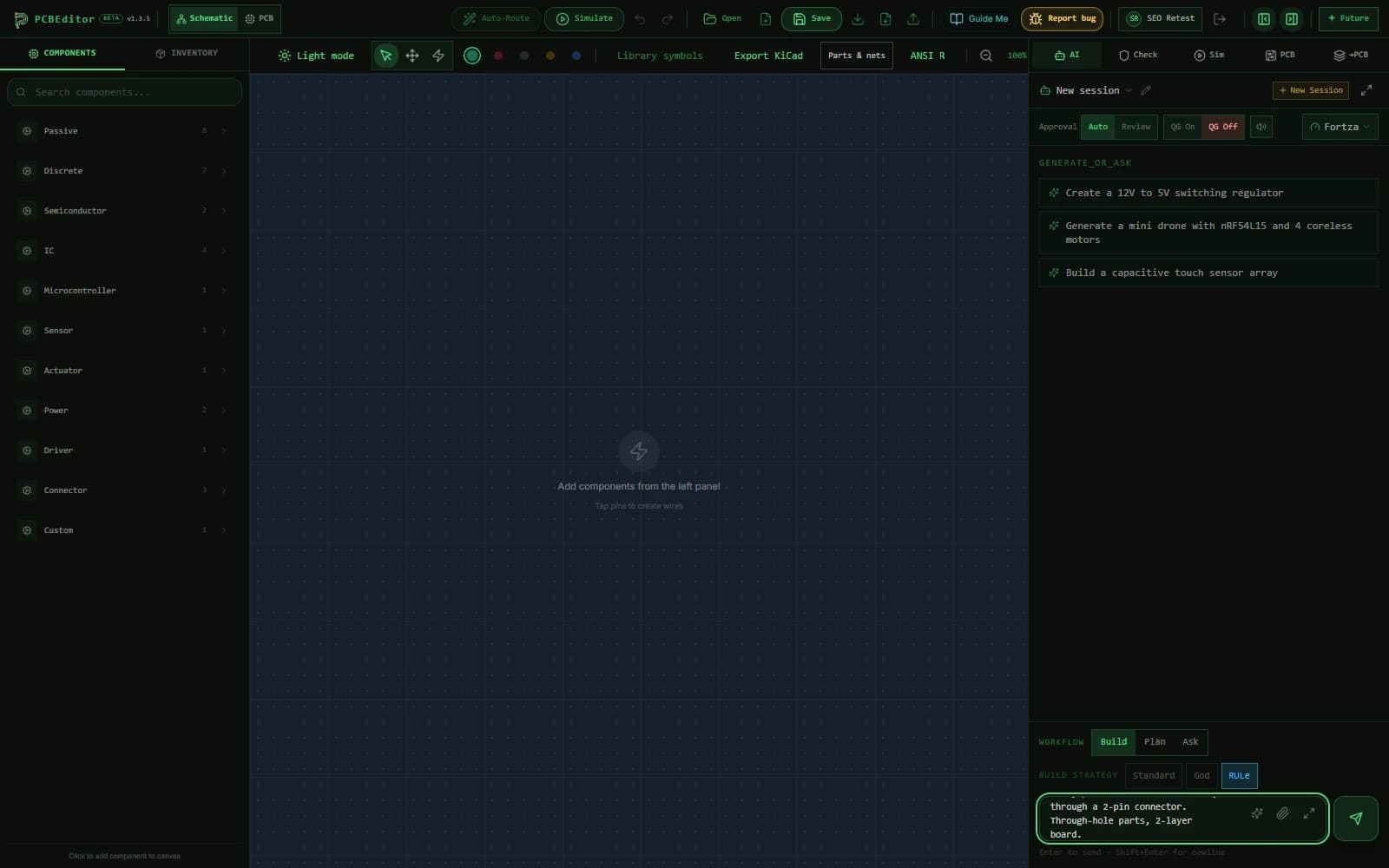
Open the editor and choose Schematic at the top left. The sheet in the middle is your circuit diagram. The left panel holds parts to place by hand. The right panel holds the AI chat, the Check tab and the rest of the tools. You can mix the two: let the AI draw a first version, then fix it by hand, or draw the power section yourself and ask the AI to add the rest.
Draw it by hand
- Place parts. The Components panel lists common parts by group (passives, discretes, semiconductors, ICs, connectors, power and more). Search it, then click a part to drop it on the sheet.
- Wire them. Press W, or pick the wire tool, then click one pin and then another. Junction dots appear where three or more wires meet.
- Name the nets. Press L on a wire to give it a net label; two wires with the same label are one net. Set a wire’s role to Power or Ground and the editor draws the VCC or GND symbol at its pins.
- Tidy up. R and Shift+R rotate, Mirror X and Y flip, Delete removes, and Ctrl+Z undoes. Press Q on a pin you are leaving unconnected on purpose.
If the symbols are new to you, the schematic symbols chart explains the common ones, from resistors to logic gates.
Or describe it and let the AI draw it
In the AI tab, describe the circuit the way you would to an engineer: the main parts by part number, the supply, the currents and frequencies, and which pin does what. The AI chooses real parts, wires the circuit and lays out a board from it. Switch to Schematic to see the sheet, drawn with each part’s KiCad symbol. From there it is an ordinary schematic: edit any of it by hand, or ask for changes in plain English.
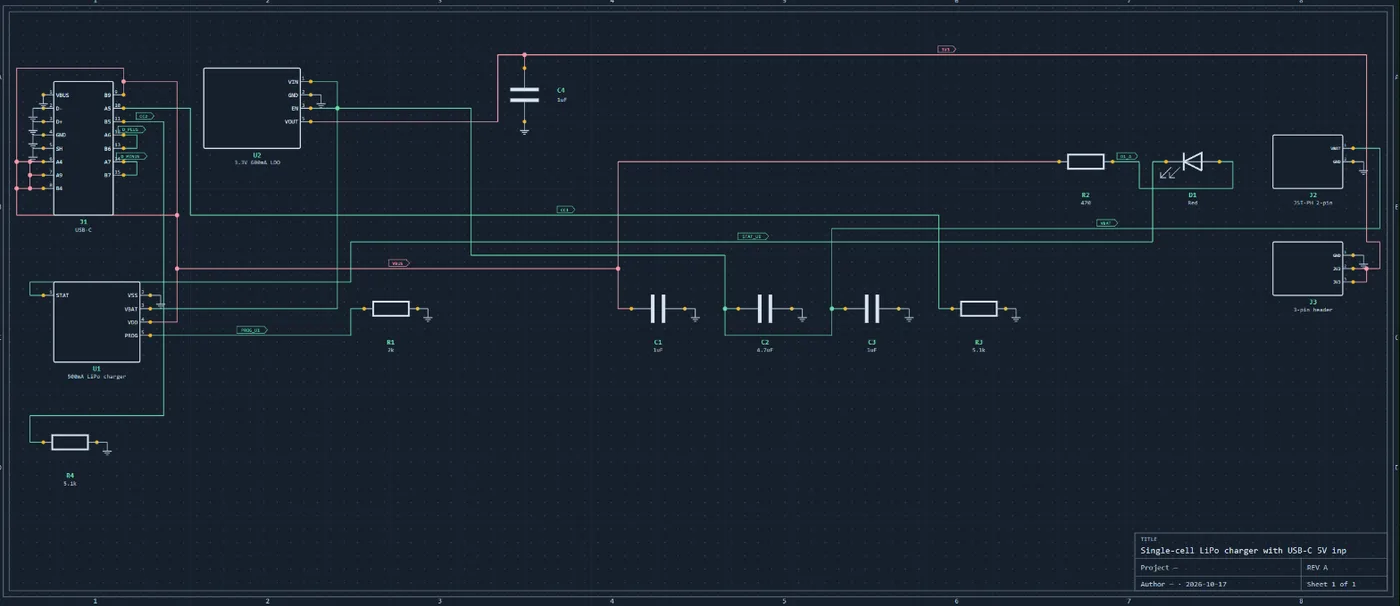
A tidy diagram is not a correct one
Check it before you build anything
The Check tab runs an electrical rule check on the diagram and lists errors and warnings. The Parts & nets panel adds the drawing rules. Between them they look for:
- Wiring
- Parts with nothing connected, floating pins, wires that end nowhere, conflicting or disconnected net labels, a no-connect pin that is wired, and tee joints without a junction dot.
- Power
- A circuit with no supply or no ground, and a supply above a part's rated voltage.
- Common circuit mistakes
- A MOSFET gate that nothing drives, a power MOSFET with no gate resistor, and a relay or motor coil with no flyback diode.
- Drawing
- Duplicate reference designators, wires drawn through symbols or pins, diagonal wires and pins off the grid.
A sheet with drawing errors is not sent on to the board, so the PCB is never built from a diagram with dangling wires.
Turn the diagram into a PCB
When the sheet is right, press Generate PCB from schematic (or Approve → Generate PCB on a sheet the AI drew). The board is built from the sheet as it is now, your edits included: footprints, placement, routing and a design-rule check. From there, the online PCB editor takes over, and how to make a PCB covers the rest, through ordering.
Import and export
- Export KiCad downloads a self-contained .kicad_sch with the nets labelled, in KiCad 9’s file format.
- Import KiCad 6+ schematics, every sub-sheet included. Older KiCad 5 .sch files need re-saving in a newer KiCad first.
- Export Circuit / Import Circuit save and reload the whole sheet as one .circuit file.
What it does not do (yet)
- No PDF or image export of the schematic. Export to KiCad and plot it there.
- No Eagle, EasyEDA or Altium schematic import; KiCad 6+ only.
- No shared editing or share links.
- The hand-placement panel holds common parts. For anything else, describe it to the AI or import it from a KiCad schematic.
Common questions
- Is there a free online circuit diagram maker?
- Yes. PCBEditor's schematic editor is free in the browser: place parts, wire them, check the circuit and export it to KiCad without an account. A free account adds AI drawing from a description, saving, and turning the schematic into a routed PCB.
- Can I make a circuit diagram from a text description?
- Yes. In the AI tab, describe the circuit with its main parts and numbers, for example an NE555 flashing two LEDs at 1 Hz from 9 V. The AI picks real parts, draws the schematic and lays out the board; open Schematic to see and edit the sheet. Check it against the datasheets before you order anything.
- Can I export my schematic to KiCad?
- Yes. Export KiCad downloads a self-contained .kicad_sch file with the nets labelled, in KiCad 9's file format (open it in KiCad 9 or newer). You can also import schematics from KiCad 6 onwards, including sub-sheets.
- Can I turn my circuit diagram into a PCB?
- Yes. Generate PCB from schematic builds the board from the sheet as you drew or edited it: it assigns footprints, places the parts, routes the board and runs a design-rule check. This step needs a free account.
- What is the difference between a circuit diagram and a wiring diagram?
- A circuit diagram (schematic) shows how parts are connected electrically, using standard symbols, with no regard for where they sit. A wiring diagram shows the physical wires: where each one runs, its colour and which terminal it lands on. You design a PCB from a circuit diagram.
- Can I export the schematic as a PDF or image?
- Not yet. Export the sheet to KiCad and print or plot it there, or take a screenshot. PDF and image export are not in the editor today.
Make a circuit diagram now
Open the editor with a 555 flasher already described in the chat box: change it to your circuit, or clear it and draw by hand.
Open the circuit diagram maker→Sources
- PCBEditor v1.3.5 schematic editor, checked in code and in a local build on 19 October 2026.
- KiCad symbol libraries (CC BY-SA 4.0), which PCBEditor bundles for part symbols.
- Texas Instruments NE555 datasheet (SLFS022): astable operation and frequency formula.